Translator
Step-by-step:
This project is for Windows operating system. The link for the tutorial: "Bootstrap a new project"
(beeware-venv)C:\...>briefcase new
In the virtual environment and asked for the name of the application, we chose "translator". This way, we will find a new "translator" folder that inside the "beeware-tutorial" folder. The translator folder contains the configuration of our application
Formal Name [Hello World]: translator
We can then confirm all subsequent configuration requests by clicking the "enter" button and choosing those proposed names (email, url, etc.) by default. We will then arrive at the following:
      Application 'Translator' has been generated. To run your application, type:
      cd translator
      briefcase dev


      (beeware-venv) (base) C:\z_mobile\beeware-tutorial>cd translator
      (beeware-venv) (base) C:\z_mobile\beeware-tutorial\translator>briefcase dev
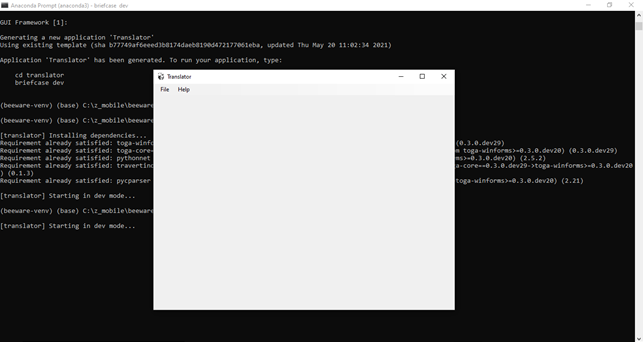
Now let's go to the windows folder we just created and look for the "app.py" file that we will modify to create our program

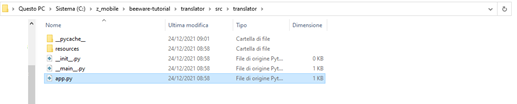
When we open the "app.py" file we find the following code already set
   """
   My first application
   """
   import toga
   from toga.sytle import Pack
   from toga.sytle.pack import COLUMN, ROW

   class Translator(toga.App):

      def startup(self):
         """
         Construct and show the Toga application.

         Usually, you would add your application to a main content box.
         We then create a main window (with a name matching the app), and
         show the main window.
         """
         main_box = toga.Box()

         self.main_window = toga.MainWindow(title=self.formal_name)
         self.main_window.content = main_box
         self.main_window.show()

   def main():
      return Translator()
Starting from these initial settings, let's add three containers that will have different functions: box1 to insert the sentence to be translated and select the language box2 will contain a button to start the translation box3 will contain the translation result.
   #create 3 box
   box1 = toga.Box() #for input data and select language
   box2 = toga.Box() #for button to translate
   box3 = toga.Box() #to show output in label
Let's write a line of code that will serve as an input for the text to be translated
   #create text input
   self.text_input = toga.TextInput(placeholder = "Enter data to translate..")
Now, in order to see the data entry line, we need to bind the input statement to the box1 container we created earlier. The association is done using an object language:
   #add text input to box1
   box1.add(self.text_input)
and finally we have to associate the container box1 to the container "main_box" with the following instruction:
   #add box1 to main box
   main_box.add(box1)
Now let's see the result of these first instructions on the briefcase window, launching the following instruction:
(beeware-venv)C:\...\beeware-tutorial\translator>briefcase dev
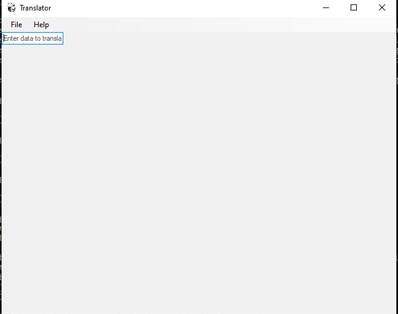
We now add three instructions to change the visual style of this input line, in particular, we want it to be the full length of the window and flexible in its resizing (flex) and then we want some margin from the top of the window and from the left side. The style is always attributed with commands to objects:
   self.text_input.style.flex = 1 #to autoretrieve the line of input text
   self.text_input.style.padding_top = 50 #create margin form top of the main window
   self.text_input.style.padding_left = 50  #create margin form left of the main window
This is the result:
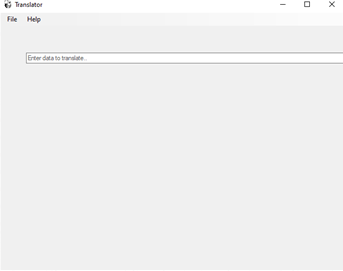
Now let's create a combo window, which allows the selection of some languages, we will then create a list with the following values: ['es', 'en', 'hi', 'zh-cn'], these will refer to a file that contains another list in dict format and the match is {'es': 'espanol', 'en': 'english', 'hi': 'hindi', 'zh-cn': 'chinese (simplified)'} . This is the link where you can find the complete list of available languages. This window will always be inserted in the container box 1, so that it is on the same line as the text to be translated, but with the help of the style, we will choose the position with respect to the main window.
   #now create selection (drop down) to select language)
   self.language_selection = toga.Selection(item = ['es','en','hi','zh-cn'])
   self.language_selection.style.padding_top = 50 #create margin form top of the main window
   self.language_selection.style.padding_left = 50 #create margin form left of the main window
   self.language_selection.style.padding_right = 50  #create margin form right of the main window

   #add selection to box1
   box1.add(self.language_selection)
This is what the combo window looks like and its position in the main window
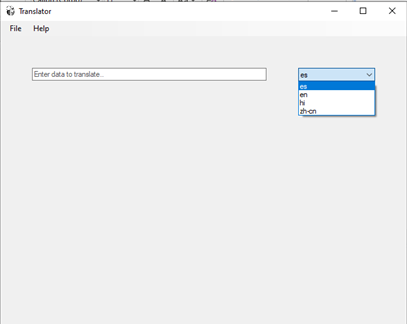
Now we write the instructions to add a button, we will define the style for the position, we will put it in the container "box2" and we will add this container to the "main box", in order to be able to view it. Warning: all the additions of new "boxes" to the "main box" are positioned on the same line, in this case, however, there is a risk that the position of the "boxes" will come out of the "main box", so you have to change the style of the "main box", modifying the "positioning" style and then choosing "direction = COLUMN"
   #now create button to translate
   translate_button = toga.Button("Transaltion")
   translate_button.style.flex = 1
   translate_button.style.padding_top = 50
   translate_button.style.padding_left = 50
   translate_button.style.padding_right = 50

   #add button to box2
   box2.add(translate_button)

   #add box2 to main box
   main_box.add(box2)

   #change main box style..
   main_box.style.update(direction = COLUMN)
This is what the result on the main window
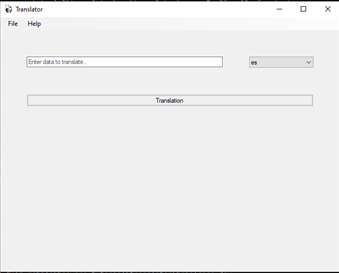
Now create a function that we call on button click… on button click input text and selection value will be fetch and use that value to translate data. To use the "googletrans" package it is necessary to import the package into the program with the "import" command
   import googletrans # to import the tools of Translator()

   #now create the function "translation"
   def translation(self,widget)
      #create instance
      translator = googletrans.Translator()
                                       #sentence to translate      #language code
      translation = translator.translate(self.text_input.value,self.language_selecton.value)

      #add output to label
      self.output.text = "OUTPUT : " + translation.text
Now we need to modify the button, so that when clicked .. the "translation" function is activated
   #now modifie button to translate
   translate.button = toga.Button("Translation", on_press = self.translation)
Now we have to go back to the virtual environment of "Anaconda" and install the google translator package with the instruction: "python -m pip install googletrans==3.1.0a0"
(beeware-venv) (base) C:\z_mobile\beeware-tutorial\translator>python -m pip install googletrans==3.1.0a0
This is the result on the main window
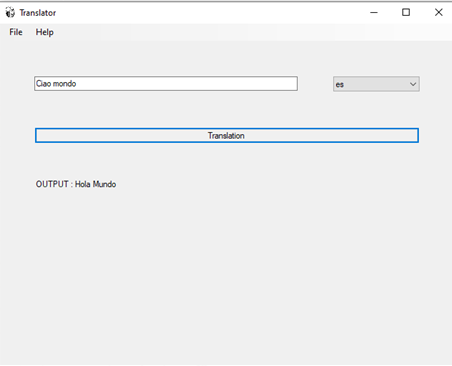
Here you can download the app.py Translator file of the program that was written in this tutorial